Tips and Tricks
GNOME Keyboard Shortcuts
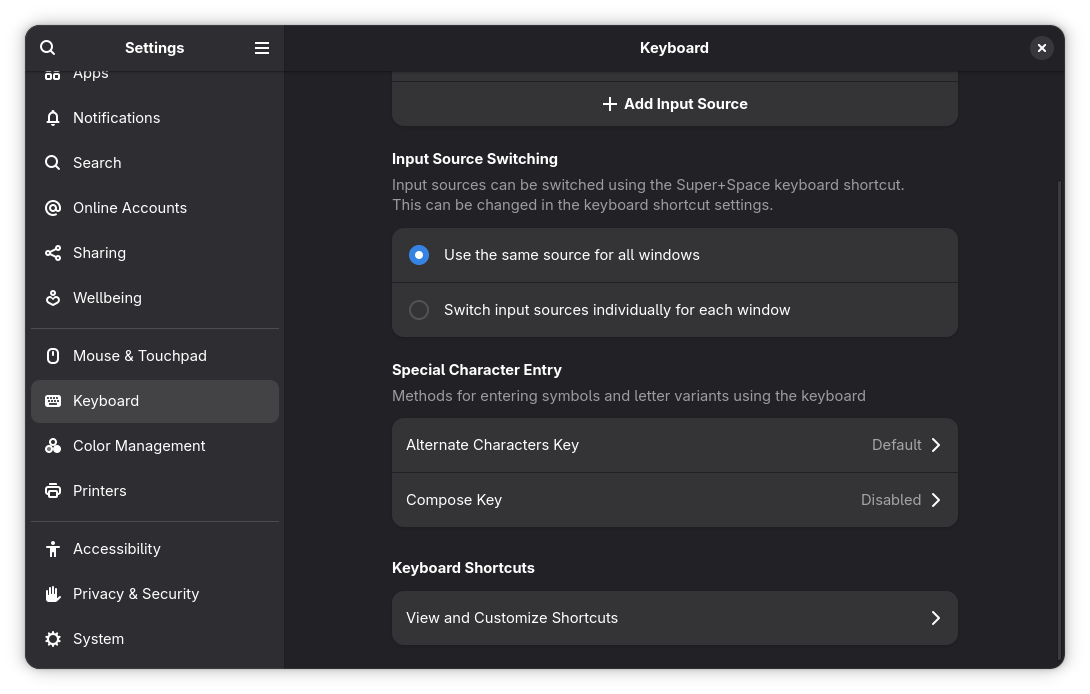
GNOME has built-in keyboard shortcuts for various tasks, but can be changed to your preferences in the Settings > Keyboard > View and Customize Keyboard Shortcuts.
| Keyboard Shortcut | Action |
|---|---|
| Alt + F2 | Open GNOME Run dialog |
| Alt + F4 | Kill the active window |
| Alt + Tab | Open application switcher overlay |
| Super | Open Activities Overview |
| Super + A | Open the App Grid |
| Super + L | Lock the screen |
| Super + S | Open Quick Settings |
| Super + M (or Super + V) | Open Notification Center |
| Super + H | Minimize current window |
| Super + Up | Maximize current window |
| Super + Down | Restore window |
| Super + Left | View split on left |
| Super + Right | View split on right |
| Super + F1 | Launch help browser |
| Super + Space | Switch to next input source |
| Shift + Super + Space | Switch to previous input source |
Hot Corners
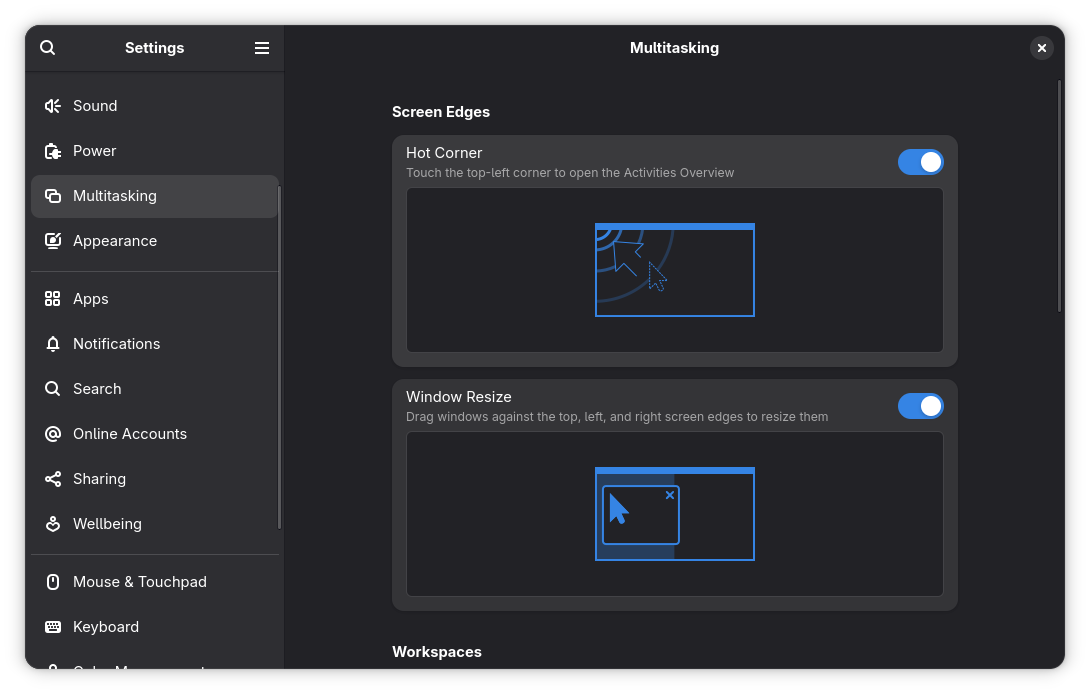
GNOME Hot Corner is a feature that instantly opens the Activities Overview when you flick your mouse in the very top left corner of the screen. Can be found in Settings under Multitasking.
Super Key (or the Windows Key)
Hit the Super Key any time to get an overview, switch or launch apps, and search for anything on your computer. It's magic.

Touchpad Gestures
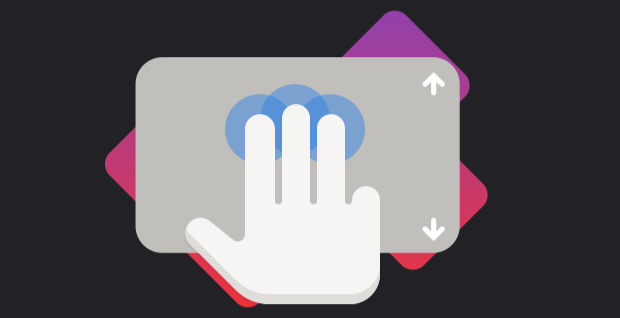
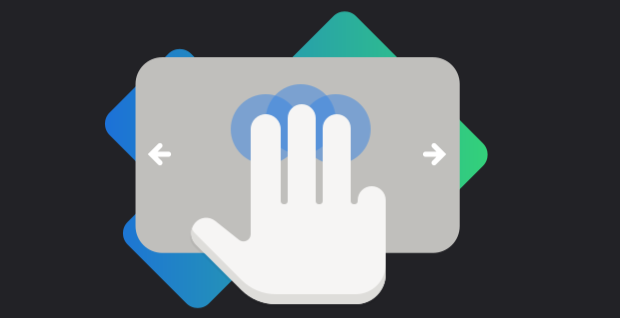
Swipe Up with three fingers to open the Activities Overview or swipe left or right with three fingers to switch workspaces.
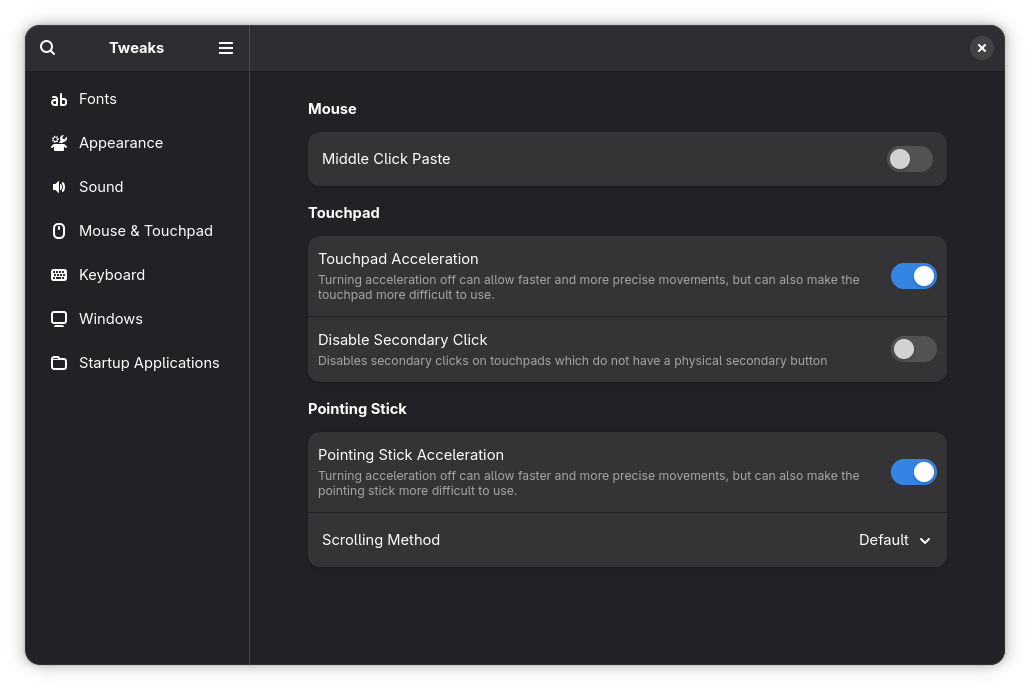
GNOME Tweaks
An application that lets you access more settings such as font rendering, startup applications, and customizations like cursor styles.
Extension Manager
Available on the Software store, it is a utility for browsing, installing, and managing GNOME Shell Extensions. This tool allows you to search and install extensions from extensions.gnome.org without needing a web browser or the GNOME Shell browser connector.